Modeling SpongeBob in Maya 3D
.
.
PART 1: Scene Setup & Image Planes
1.1 Start a New Scene
Open Maya.
Go to File ▸ New Scene.
1.2 Set Project Scale
Open Windows ▸ Settings/Preferences ▸ Preferences.
Under Settings, set:
- Working Units → Linear: centimeters.
Click Save.
1.3 Setup Viewports
Press spacebar to open the Four Viewports: Top, Front, Side, Perspective.
Use Panel menu > Orthographic > Front to open the Front View fully.
1.4 Import Image Planes
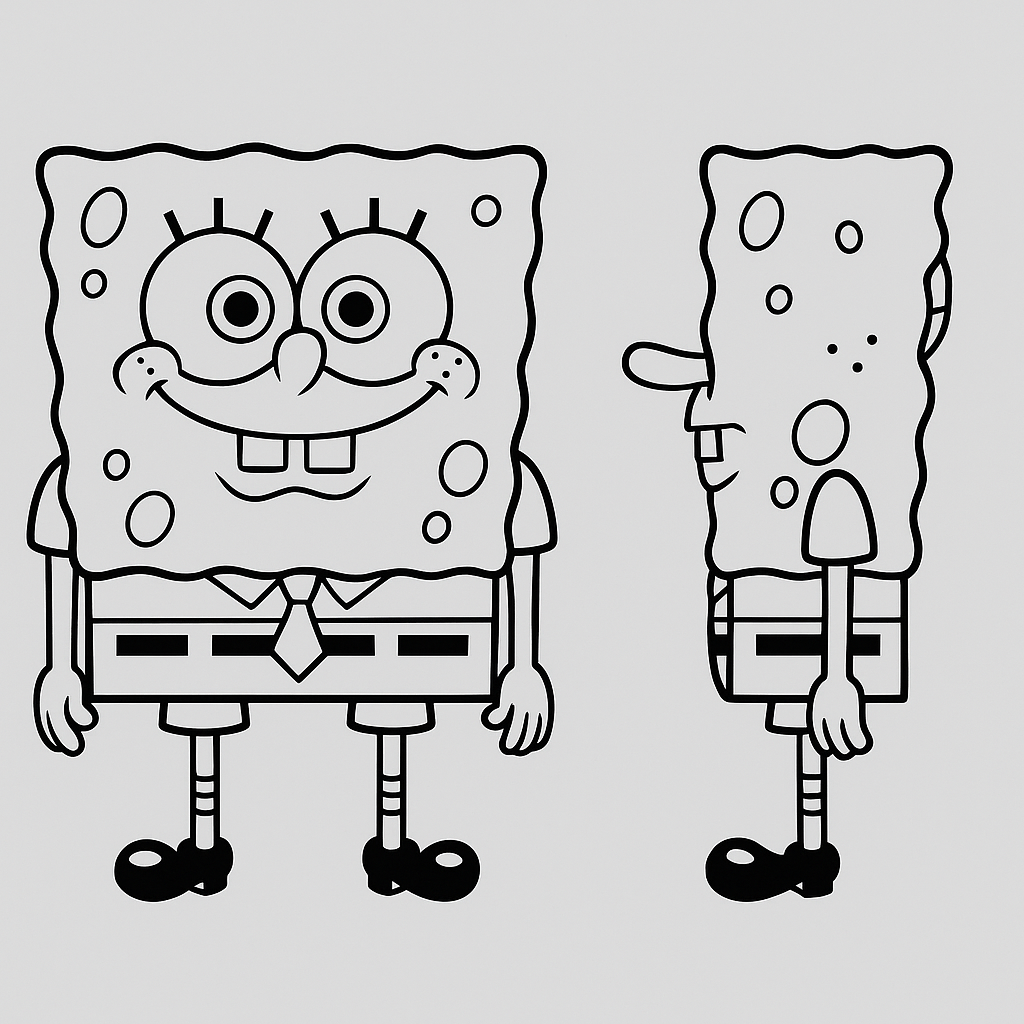
Front Image:
Go to View (in Front view panel) ▸ Image Plane ▸ Import Image.
Select the front reference image (e.g., spongebob_front.png).
Side Image:
Switch to Side View → View ▸ Image Plane ▸ Import Image.
Select the side reference image (e.g., spongebob_side.png).
1.5 Adjust Image Plane Position & Transparency
Select each image plane → press Ctrl + A to open Attribute Editor.
In imagePlaneShape tab:
Set Alpha Gain to 0.3 (makes image translucent).
Adjust Depth so the image appears behind the modeling grid (e.g., Depth = -10).
Tip: Use the Channel Box to position the image planes at correct locations:
Front plane: X = 0, Z = -10.
Side plane: X = -10, Z = 0.
1.6 Lock Reference Images
- Create a new layer in the Channel Box → Add image planes to this layer → click R (Reference) to lock them.
PART 2: Model SpongeBob's Body
2.1 Create a Polygon Cube
Go to Create ▸ Polygon Primitives ▸ Cube.
Set the cube size roughly:
Width: 10 cm
Height: 14 cm
Depth: 4 cm
Press R to scale or use Channel Box.
2.2 Add Subdivisions
With the cube selected:
In the Channel Box, set:
Subdivisions Width: 5
Subdivisions Height: 6
Subdivisions Depth: 3
2.3 Match the Front and Side View Silhouettes
Use right-click ▸ Vertex, enter component mode.
Use Move Tool (W) and Soft Selection (press B) to shape the cube:
Front view: match eyes, mouth, tie position.
Side view: shape the curve of his back and front body bulge.
PART 3: Model Legs, Arms, Eyes, and Clothes
3.1 Legs (Cylinders)
Create ▸ Polygon Primitives ▸ Cylinder
Radius: 0.3
Height: 4–5
Rotate and place at the bottom of SpongeBob's body.
Use Insert Edge Loop to add 1–2 loops for slight bends.
3.2 Shoes (Boxes/Spheres)
Create a sphere or cube for each shoe.
Scale and shape them into simple cartoon shoes.
Position and parent to each leg.
3.3 Arms (Cylinders)
Same as legs, but thinner and shorter.
Add edge loops to allow for bent elbow.
3.4 Hands (Simplified)
Create a box or half-sphere for mitt-style hand.
Add three stub fingers (small cylinders or extruded from palm).
PART 4: Model Eyes and Face Features
4.1 Eyes (Spheres)
Create ▸ Polygon Primitives ▸ Sphere
- Radius: ~1
Place and duplicate for left and right eyes.
Create smaller black flat disk for pupil using:
Polygon ▸ Cylinder → Scale in Z to flatten.
Place on eye surface.
4.2 Teeth
- Create two small boxes, place under upper lip area.
4.3 Nose and Cheeks
Nose: Create a stretched sphere or extrude from face.
Cheeks: Just extrude small areas and scale.
PART 5: Model Shirt, Pants, Tie
5.1 Shirt and Pants
Add horizontal edge loop where shirt ends (use Insert Edge Loop).
Select face ring below and Extrude outward slightly.
Repeat for pants.
5.2 Belt
Create a thin polygon strip (scaled cube or plane).
Wrap around lower body.
Model small belt holes using inset faces or cylinders.
5.3 Tie
Use Polygon Plane or box.
Shape into a diamond.
Extrude a few sections for 3D look.
PART 6: Finalizing the Model
6.1 Combine All Pieces
Select body, arms, legs, eyes, etc.
Go to Mesh ▸ Combine.
Select edges/vertices at junctions → Edit Mesh ▸ Merge to weld.
6.2 Add Thickness (if needed)
- For flat areas (shirt, tie), use Edit Mesh ▸ Extrude → Local Z to add thickness.
6.3 Smooth Preview
Press 3 on the keyboard to preview the smoothed version.
Use Insert Edge Loops to control smoothness (tight = sharp edge).
6.4 Hard/Soft Edges
Select mesh → go to Mesh Display ▸ Soften/Harden Edges.
Use soft for curved areas (sponge body).
Use hard for flat edges (pants, shoes, belt).
6.5 Delete History
- Select all → Edit ▸ Delete by Type ▸ History.
6.6 Save Your Scene
- File ▸ Save Scene As → spongebob_model_v01.ma
Tools Used in This Tutorial
| Task | Tool | Location |
| Image Planes | View ▸ Image Plane | Viewport menu (Front/Side) |
| Primitives | Polygon Cube, Cylinder, Sphere | Create ▸ Polygon Primitives |
| Modeling | Extrude, Insert Edge Loop, Move | Edit Mesh / Mesh Tools |
| Smooth Preview | Press 3 | Keyboard shortcut |
| Combine Meshes | Mesh ▸ Combine | Top menu |
| Merge Vertices | Edit Mesh ▸ Merge | Top menu |
| Lock Images | Channel Box ▸ Layers | Right-click layer ▸ Reference |
About the author
Mohamad's interest is in Programming (Mobile, Web, Database and Machine Learning). He is studying at the Center For Artificial Intelligence Technology (CAIT), Universiti Kebangsaan Malaysia (UKM).
Comments
Join the discussionNo comments yet. Be the first to comment.