Maya Basics 2: Creating, manipulating, and viewing objects
[1] Introduction
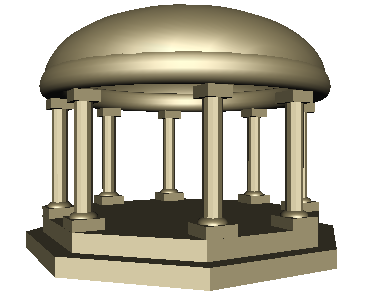
Using primitive objects to model 3D forms is a great place to continue learning about Maya. You can create many types of 3D objects using Maya and then move, scale, and rotate them to create more complex forms in your scene.
In this lesson, you begin to construct a classic temple using the primitive object creation tools in Maya. The project is not very complex and provides you with experience in using some of the important object manipulation and viewing tools.
As you continue to work with Maya, you’ll learn how to visualize more complex forms using these basic objects. Maya has many advanced tools and options for modeling complex forms, as you will learn in later chapters.
In this lesson, you learn how to:
Create 3D primitive objects.
Select objects for manipulation and editing purposes.
Move and rotate objects using your mouse.
Move, rotate, and scale objects using numeric input.
Duplicate objects.
Change the viewing panels in Maya using a variety of methods so you can view your objects from different points of view.
Undo actions when you need to undo a particular task or step.
[2] Creating a new scene
You begin your temple project by creating a new empty scene.
To create a new scene
Start Maya (if it is not already running).
When Maya starts, it automatically creates a new scene.
From the main menu, select File > New Scene.
Maya displays the following prompt.
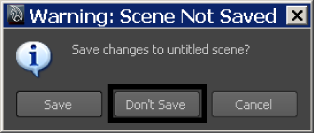
Click Don't Save.
Maya creates a new scene and deletes everything that was in the previous scene.
[3] Primitive objects
Maya provides many types of primitive types and shapes such as cubes, spheres, cylinders, and planes.

Primitive objects can be used as a starting point for a wide variety of shapes and forms. The most common workflow when using primitive objects is:
Set the construction options for the primitive when you initially create it so that it appears in the Maya scene roughly in the size and shape that you require.
Move, scale, and rotate the primitive object into its final position either by direct manipulation (the move, scale, and rotate tools), or by entering numeric values through an editor.
Duplicate the primitive objects to create multiple copies of the original or create different variations from your original primitive object.
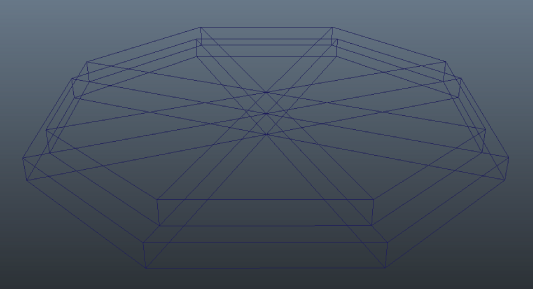
In this section, you construct the base for the temple using a polygonal cylinder primitive. The octagonal shape is created by modifying the creation options for the cylinder tool before you create the object. If you did not modify the cylinder options you would create a round cylinder.
To create a polygonal cylinder for the base
Select the Polygons menu set.
**NOTE:**Unless otherwise indicated, the directions in this lesson for making menu selections assume you’ve already selected the Polygons menu set.
You should also ensure that the Interactive Creation option for primitives is first turned off by selecting Create > Polygon Primitives > Interactive Creation to ensure the check mark does not appear beside the item.
From the main menu, select Create > Polygon Primitives > Cylinder> ☐.
An option window appears.
In the Polygon Cylinder Options window, select Edit > Reset Settings and then set the following options:
Radius: 10
Height: 1
Axis divisions: 8
Height divisions: 1
Cap divisions: 1
Axis: Y
In the Polygon Cylinder Options window, click Create.
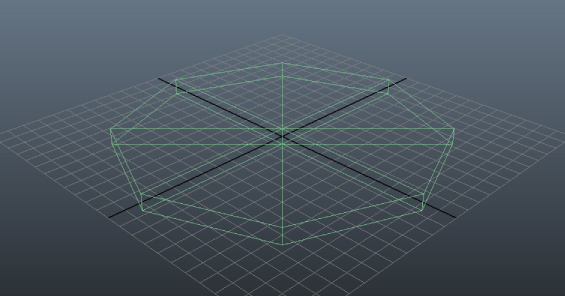
Maya creates a cylinder primitive object that is octagonal in shape and positioned at the center of the Maya workspace. This cylinder is 20 units wide by one unit high, and has eight faceted sides.
NOTE:
You were instructed to reset the option settings as a precaution in case they had been set differently. This is a good habit to practice when working with tool options to avoid getting a result that was different from what you expected.
[4] The Toolbox: Layout shortcuts
The Toolbox is located on the left hand side of the Maya user interface. It contains icons that open tools for transforming your objects within Maya (selection, move, rotate, scale) as well as layout shortcuts for changing the views and panel layouts.
The Quick Layout buttons shortcuts allow you to select a different panel or switch to another layout.
You need to finish positioning the cylinder. To do this you need to see the object from a side view to make sure it is sitting exactly on the ground plane.
To change the panel layout to view the base from a side view
From the Toolbox, click the Four View layout shortcut.
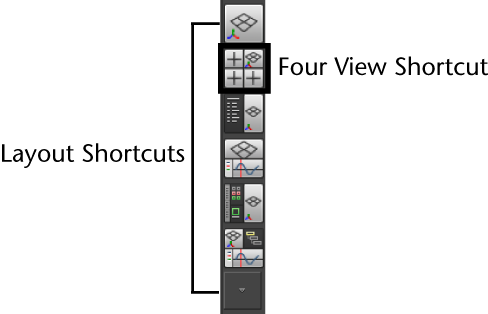
The workspace changes to a four-view layout. The perspective view is located in the top right corner and the other views show the object from the top, front and side. The layout shortcuts have other options that you will learn later in this tutorial.
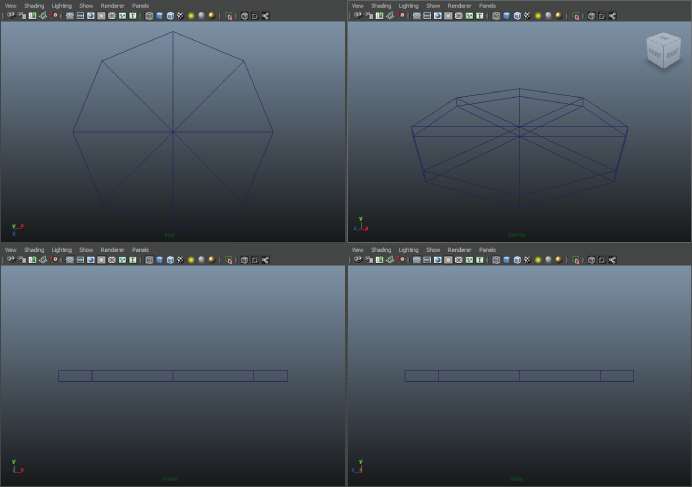
It’s now possible to see the base from the side view, but it would be easier to determine the position of the base if the side view were enlarged to a full view.
To enlarge the side view, position the mouse cursor in the side view, and tap the spacebar of your keyboard.
The workspace changes to a single view layout with the side view in an enlarged view. It is easier to view the position of the base from this side view. Notice that the base lies slightly above and below the ground plane (X, Z).
TIP:
You can position your mouse cursor in any scene view and tap the spacebar once to toggle the view. If the view is a full panel view, it will change to a four panel view and vice versa.
[5] The Toolbox: Transformation tools
You need to move the base slightly upwards in the Y direction so it is positioned on the X, Z plane. To do this you use the Move transformation tool located in the Toolbox.
The upper half of the Toolbox contains the tools for transforming objects (selection, move, rotate, scale) within Maya. When you move your mouse cursor over any transformation tool icon you see the name of the tool appear next to the mouse cursor.
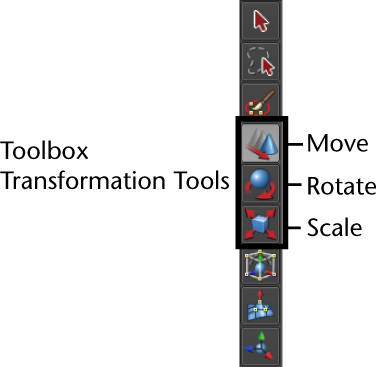
The tool’s name also appears in the Help Line at the bottom of the Maya window. The Help Line has an additional purpose: it displays summary instructions as you use tools that require several steps.

Selection and de-selection of objects
Before you can transform an object, you must ensure it is selected. You can select objects by clicking them directly, or by dragging a rectangular bounding box around some portion of the object to indicate what you want selected. To deselect an object, you simply click somewhere off of the selected object.
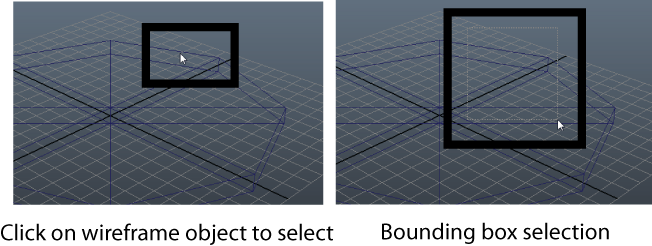
To select the base primitive object in the scene view
- Do one of the following:
With your left mouse button, click the object’s wireframe outline in the scene view.
With your left mouse button, drag a bounding box around one corner or edge of the object’s wireframe.
The object is selected when its wireframe outline color displays in a bright green color. If it is not selected, its display color is navy blue.
To use the Move Tool to adjust the position of the base
Select the Move Tool from the Toolbox.
A move manipulator icon appears over the primitive cylinder in the scene view.
The Move Tool Manipulator has handles that point in the direction of the three fundamental axis directions of 3D space: X, Y, Z. The handles are colored red, green, and blue based on their function related to the X, Y, Z axes and control the direction of the movement along an axis.
When you click a specific handle, it indicates that the move is constrained to that particular axis direction.
In the side view, drag the green Y manipulator handle to move the primitive cylinder upwards in the Y direction. Move it upwards enough so that the bottom of the base cylinder is aligned with the X axis (the thick dark line of the grid)

The base cylinder now needs to be rotated slightly so the front of the base is parallel to a grid line. Since each facet of the octagon represents 45 degrees of a circle, you need to rotate the object approximately half of that amount or 22.5 degrees.
To use the Rotate Tool to adjust the position of the base
Display all four views by positioning the mouse cursor in the view and tapping the spacebar of your keyboard.
The four view panel appears.
Position the mouse cursor in the top view and tap the spacebar once.
The top view appears in the workspace.
With the base cylinder selected, choose the Rotate tool from the Toolbox.
A rotate manipulator icon appears over the primitive cylinder in the scene view.
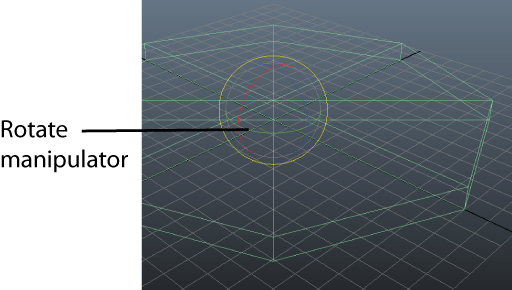
The Rotate Tool manipulator consists of three rings (handles), plus a virtual sphere enclosed by the rings. The colors of the handles correspond to the X, Y, and Z axes. The handles are colored red, green, and blue based on their function related to the X, Y, Z axes and control the direction of the rotation around an axis.
In the top view, drag the green Y manipulator ring to rotate the primitive cylinder so that one of the facets of the base cylinder is aligned with the grid as shown in the image below.
You are rotating the cylinder around its Y axis.
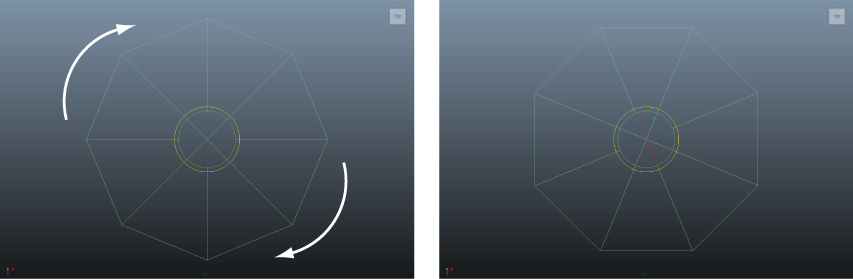
You may be asking yourself the question “How do I know if I’ve rotated the base exactly 22.5 degrees?” You can check the accuracy of the rotation by viewing the Channel Box. Rotate Y should be close to 22.5 degrees.
**TIP:**You can undo and redo the last action you performed. Undo reverses the last action you performed on a selected object. It also reverses any action you performed from the Edit Menu.
To undo an action select, Edit > Undo. Maya allows you to perform multiple undos.
[6] The Channel Box
The Channel Box is an editing panel that provides you access to an object’s transformation information and much more. It provides information on three distinct areas for any type of object: The transform node, shape node, and input node.
Nodes are where information about object types are kept track of within Maya. Nodes are comprised of attributes. Attributes refer to information related to what the node is designed to accomplish. In this case, information about the primitive cylinder’s Y axis rotation is referred to as the Rotate Y attribute. You will learn more about nodes later in this tutorial.
When you moved and rotated the cylinder primitive using the Move Tool, you were doing this by your own visual judgement. This will usually be sufficient for many of your creative applications.
If you need to control the attribute of an object with more accuracy you can do this by entering the precise values into the appropriate attribute field of the Channel Box.
To move and rotate the base using the Channel Box
With the base cylinder selected, view the Transformation attributes in the Channel Box. Specifically, view the values for Translate Y, and Rotate Y.
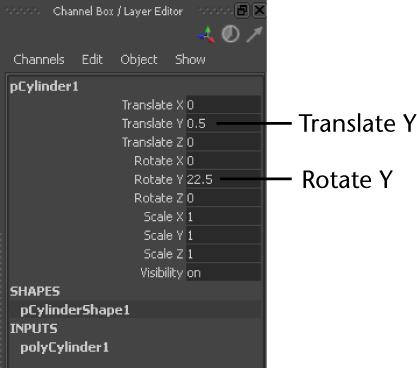
In the Channel Box, adjust the attribute values so they match the above image by clicking in the field and entering the correct numerical values.
This accurately positions the base in your Maya scene.
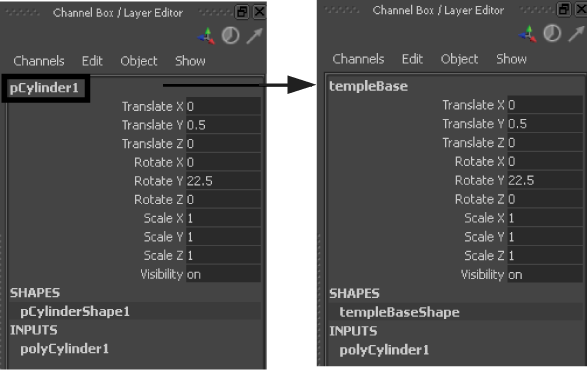
Maya named the cylinder primitive when it was first created. Rename the cylinder to something more meaningful to your project.
To rename the cylinder primitive using the Channel Box
In the Channel Box, click in the field with the name pCylinder1.
Rename the primitive object by typing the new name: templeBase and then pressing Enter.
[7] Duplicating objects
Duplicating an existing object is a useful way to make an exact copy of it without having to start over. When you duplicate an item the copy takes on the characteristics of the original. Using the Duplicate Tool you can additionally apply transformations to the copy (move, rotate, scale).
Return to a four view layout to view what you’ve accomplished to this point.
To change the panel layout to a four view layout
Select the Select Tool.
From the Toolbox, click the Four View layout shortcut.
The workspace changes to a four view layout. It is easier to view the work from this four view layout.
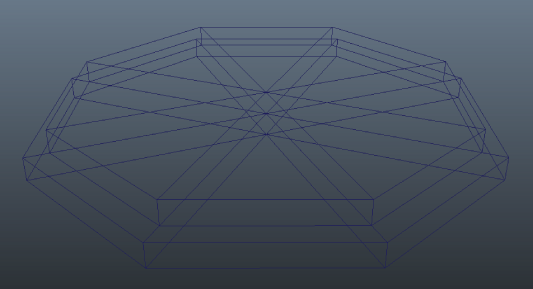
The base for the temple is constructed of two levels and appears stepped. You duplicate and scale the templeBase object using the duplicate tool.
To duplicate the temple base
In the four view layout, click in the perspective view and tap the spacebar to display the base in this view.
With templeBase selected, choose Edit > Duplicate Special >☐ from the main menu.
The Duplicate Special Options window appears.
In the Duplicate Special Options window, select Edit > Reset Settings and then set the following options:
Geometry Type: Copy
Group under: Parent
Translate: 0 1.0 0
Rotate: 0 0 0
Scale: 0.9 1.0 0.9
In the Duplicate Special Options window, click Duplicate Special.
Maya creates a duplicate of the templeBase object that is scaled to 0.9 of the original in the X, Z axes, and is one unit above templeBase. As a result of the scale operation, the base for the temple now appears stepped.
Maya keeps track of the name of the duplicated object based on the name of original and renames the duplicated object templeBase1.
[8] Save your work
In the last lesson we recommended that you save your work at regular intervals. An example of this is when you have just completed a major task such as constructing the base for the temple. With this strategy, if you ever make a mistake, you can always open the previously saved version of your work and begin from there.
To save your Maya scene
Select File > Save Scene As.
A file browser appears showing the GettingStarted2015LessonData\Basics\scenes directory where you can save your scene. Ensure that you are saving in the scenes sub-directory.
If the GettingStarted2015LessonData\Basics directory does not appear, you need to create the Basics folder and set it as your Maya project.
Type Lesson2Base in the file name text box.
Click Save As.
[9] Beyond the lesson
In this lesson you continued with the fundamental tools and skills to successfully learn:
An overall workflow for constructing forms using primitive objects.
Where the primitive object tools are located in the main menu.
How to create a primitive object as well as reset and edit its creation options.
How to change between a single view and four view panel layout using layout shortcuts and by tapping the spacebar of your keyboard.
How to select objects by clicking them with your mouse.
How to move and rotate objects using the transformation tools in the Toolbox.
That tool manipulators can constrain a transformation to the X, Y, or Z axes.
How to edit an object’s transformation node attributes (move, rotate, scale) accurately using the Channel Box.
How to rename objects using the Channel Box.
How to duplicate objects and apply transformations while doing so.
We suggest you additionally practice the following tasks on your own:
Creating other primitive object types, with various options so that you can understand the variations that are possible.
Try using the ViewCube™ located in the upper-right corner of the active scene view to change the camera’s viewing angle in relation to the objects in the scene.TIP:If you do not see the ViewCube in the scene view, open the ViewCube category in the Preferences window (Window > Settings/Preferences > Preferences) and make sure Show the ViewCube is turned on.
Practice moving, rotating, and scaling objects, and changing between the various scene views (single perspective, four view, single side, single top etc.)
[]
About the author
Mohamad's interest is in Programming (Mobile, Web, Database and Machine Learning). He is studying at the Center For Artificial Intelligence Technology (CAIT), Universiti Kebangsaan Malaysia (UKM).
Comments
Join the discussionNo comments yet. Be the first to comment.